
eCommerce data API for Chatbots: Filter by Price, Discount, Stock

eCommerce data API for Chatbots is the plumbing behind a simple promise: when a shopper asks for something under a price cap, meaningfully discounted, and available now, the bot returns a shortlist that holds up when clicked. Miss any one of those constraints and the conversation turns into cleanup, not conversion.
In this article, a filter is a structured rule applied to a product catalog, for example Final Price under 150, Currency equals USD, and In Stock equals true. Discount is the calculated percent off based on regular price versus final price, which matters because it separates real deals from creative copy. Affiliate.com aggregates a normalized catalog spanning more than 30 networks, thousands of merchants, and over a billion products, so these filters behave consistently across sources.
Why these three filters decide whether a chatbot is trusted
Price is the user’s hard boundary. If your bot ignores it even once, the user stops sharing constraints and starts browsing elsewhere.
Discount is the user’s value signal. Affiliate.com exposes Regular Price, Final Price, and Discount so you can sort and filter on the actual price drop, not the merchant’s sale label.
Stock is the bot’s credibility check. Inventory fields like In Stock and availability prevent the classic failure mode where a bot recommends something that cannot be purchased.
The field language, translated for marketers
You do not need a schema diagram. You need a mental model for how to layer constraints.
Pricing fields
Use Currency to keep results in the shopper’s market, then apply Final Price as the ceiling and Discount as the minimum value threshold. Affiliate.com explicitly frames Final Price as what the customer would pay today, and Discount as the calculated percentage off.
Practical rule: filter first, sort second. Filter removes irrelevant inventory. Sort decides which of the remaining options you show first.
Inventory fields
Start with In Stock equals true. If you need more strictness, layer Availability or stock details when present in the feed. The goal is not perfection, it is avoiding obvious dead ends.
Merchant and network fields
Use Merchant Name or Merchant ID when the business goal is partner eligibility or brand positioning. Use Network Name or Network ID when you need to narrow the data source for operational reasons or approvals. Affiliate.com calls out both network and merchant level filters as a clean way to sharpen searches.
The Any field for intent capture
When a shopper says “bluetooth speaker” they rarely know the exact model name. The Any field searches broadly across fields so you can start with intent, then layer precision filters like brand, merchant, and price.
Workflow: start broad, then layer until the shortlist feels inevitable
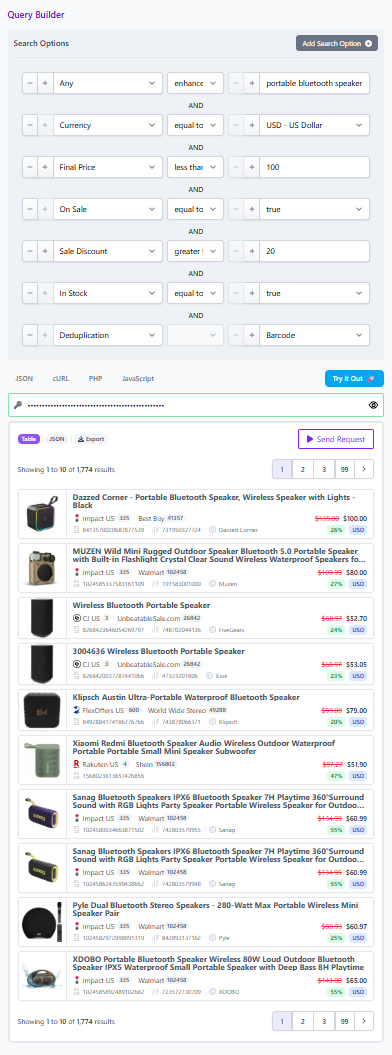
Step 1, capture intent with Any
User prompt: “portable bluetooth speaker under 100, at least 20 percent off, in stock.”
Start with Any equals portable bluetooth speaker. This casts a wider net than Name alone and reduces the chance you miss relevant items due to messy titles.
Step 2, lock currency and price
Add Currency equals USD, then Final Price less than or equal to 100. Affiliate.com’s own examples use Currency and Final Price together to narrow broad searches into usable sets.
Step 3, validate the deal with On Sale and Discount
Turn On Sale to true, then set a Discount minimum, such as 20 percent. This is the difference between “on sale” as marketing language and “on sale” as measurable price change.
Step 4, enforce stock
Add In Stock equals true. Now your shortlist is both affordable and purchasable.
Step 5, choose deduplication based on the experience you want
Deduplication controls whether identical products are grouped into one result or shown as separate offers. If your chatbot returns one recommendation, deduplicate on. If your chatbot is comparing offers across merchants, deduplicate off so you can show multiple listings for the same product and let Final Price and Discount decide the winner.
Applied example: one product, multiple merchants, with clean deal rules
Here is a scenario that comes up in real teams: a content lead wants the bot to answer questions about a known product, but only surface offers that meet campaign constraints.
- Anchor identity with a barcode
If you have a barcode such as UPC, EAN, or GTIN, you can match the same product across retailers even when titles differ, which is exactly what shopping assistants need for clean comparisons. - Add brand as a sanity check
Brand data is normalized on Affiliate.com, so you can avoid edge cases where listings are messy or formatted differently across sources. - Layer commercial constraints
Currency equals USD, Final Price under your cap, Discount above your threshold, In Stock true. - Apply merchant eligibility
Add Merchant Name or Merchant ID filters to keep results aligned with your approved or preferred partners. - Decide whether you want one result or a comparison
Deduplicate on for a single pick. Deduplicate off for offer comparison across merchants.
Quick checklist for launch reviews
Use this as the final pass before you ship a chatbot flow.
Query design
- Start with Any for intent, then narrow with Currency, Final Price, Discount, and In Stock
- Prefer barcode, SKU, or MPN when you need an exact product match across listings
Offer presentation
- Deduplicate on when the bot should return one clean product entry
- Deduplicate off when the bot should show multiple offers for the same item
- Sort by Final Price or Discount depending on whether the user cares more about cheapest or best deal depth
Trust and compliance
- Avoid price guarantees, always recommend verifying the current offer in the live experience, since merchant data refreshes over time
Call to action: build it in Query Builder, then share it across teams
If you want your chatbot answers to be consistent across campaigns, build the filter stack in Affiliate.com’s visual Query Builder first, then use Share to distribute the exact query your team approved. Shared links reopen with the query populated, which makes review and iteration far faster than passing screenshots around.
Once you have one good “price, discount, stock” query pattern, it becomes a reusable asset: the same structure can power a deals bot, a gift finder, or a comparison experience, just by swapping the intent term and the thresholds.