
Find Amazon Product Matches at Alternative Merchants

Finding Amazon product matches at alternative merchants is a precision task. The intent keyword is Amazon product matches, and the most reliable way to achieve it is to anchor on identifiers, normalize results, then compare offers field by field. Affiliate.com’s dataset spans more than 30 networks, tens of thousands of merchant programs, and over a billion products, which makes the matching step both feasible and repeatable for operator teams.
Normalization means we treat titles, attributes, and IDs consistently across sources. With identifiers such as barcode and ASIN available, plus deduplication controls and network or merchant filters, you can move from a single Amazon listing to a clean set of identical offers across multiple merchants in minutes. The OMNI endpoint also supports search by barcode or ASIN alongside the core Product Search API.
Method / Framework
Step 1: Capture the strongest identifier first (barcode beats text)
A barcode, also called GTIN, UPC, EAN, or ISBN, is a universal product identifier. When you have both ASIN and barcode, use barcode as the primary key and treat ASIN as a helpful cross reference. This cuts through title variance and bundle noise.
Step 2: Search with OMNI or Product Search
Use the OMNI endpoint when you want to start from Amazon inputs, then pivot to the broader dataset. OMNI accepts barcode or ASIN and returns core fields such as price and availability. For broader discovery or filtering, use Product Search where more than thirty fields are indexed, including brand, barcode, merchant, currency, and discount.
Step 3: Layer filters to sharpen intent
After the initial match, layer constraints to make results operational: currency equals USD, in stock equals true, commissionable status equals true, merchant ID in your approved list, and sale discount greater than a threshold. This is the difference between a raw match and a production ready offer set.
Step 4: Control deduplication based on the UI you are building
Turn deduplication on when you want one product card with multiple merchant offers beneath it. Turn it off when you are building a price comparison view that shows each merchant line by line for the same product.
Step 5: Sort by the decision field that matters
For deal pages, sort by highest discount. For value pages, sort by lowest final price. For availability sensitive experiences, sort by in stock first. Use network or merchant filters to stay within programs where you are approved.
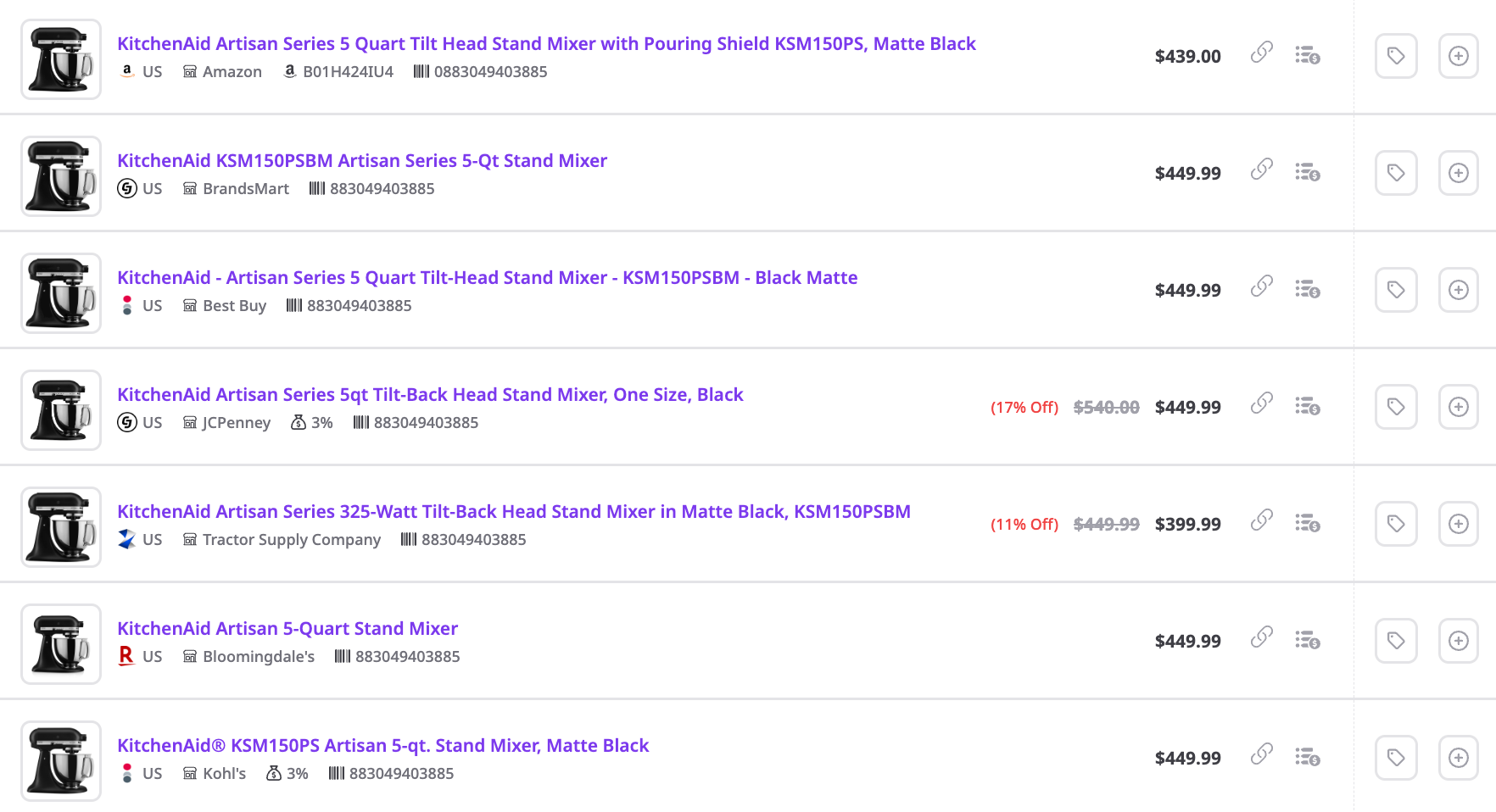
Applied Example
Goal: take a single Amazon listing and find identical offers at alternative merchants, then feature the best option for today.
Inputs you already have from Amazon
- IDs: ASIN, possibly barcode if present
- BASIC: Name, Description
- ATTRIBUTES: Brand, Model
- URLs: Direct URL, Image URL
Query sequence in Affiliate.com
- Start with OMNI: search by ASIN. If barcode is returned, prefer it for exact matching across merchants.
- Switch to Product Search with
Barcode equals {value}. - Apply layered filters:
- INVENTORY: In Stock equals true, Availability equals available, Commissionable Status equals true
- PRICING: Currency equals USD, On Sale equals true or required minimum Sale Discount
- MERCHANT or NETWORK: Merchant ID in your approved list or Network ID in target networks
- Set SEARCH OPTIONS: Deduplication on for a single normalized product record.
- Sort: Final Price ascending, then Sale Discount descending.
Key fields to inspect before selection
- MERCHANT: Merchant ID, Merchant Name
- INVENTORY: In Stock, Stock Quantity, Availability, Commissionable Status
- PRICING: Regular Price, Final Price, Sale Discount, Currency, Ship Price
- IDs: Barcode, SKU, MPN, ASIN
- NETWORK: Network Name, Network ID
- URLs: Commission URL, URL, Direct URL, Image URL
For more information, visit https://www.affiliate.com/programmatic-apis.