
How to Connect Claude to Affiliate.com's MCP for AI Assisted Product Curation

Claude to Affiliate.com's MCP is a workflow for AI assisted product curation. Claude provides the conversational interface, while Affiliate.com supplies the normalized product catalog that can be searched by merchant, brand, price, discount, availability, barcode, MPN, ASIN, network, and other structured fields.
The practical use case is simple: an editor asks Claude for a curated shopping set, such as five hiking essentials from selected merchants, and Claude uses Affiliate.com's MCP tools to search the catalog rather than inventing recommendations. Affiliate.com’s product data spans more than 30 networks, tens of thousands of merchant programs, and over a billion products, giving teams a broad but filterable base for commerce research and product selection.
Why this matters for affiliate teams
Most affiliate curation breaks in one of two ways. The editor starts with a good idea but spends too much time hunting through merchant feeds, or the AI assistant gives a plausible shopping list without enough connection to actual product data.
The Affiliate.com MCP closes that gap. Claude can help translate an editorial request into structured product discovery, then return candidates with product names, merchants, prices, discounts, availability, and links for review.
A hiking article is a useful example. The user does not ask for “popular hiking gear” in the abstract. They ask Claude to use the Affiliate.com MCP to recommend five products from a defined merchant set, including Walmart, Cabelas, Nordstrom, Newegg, Dick's Sporting Goods, and Sportsman's Warehouse.
Step by step: connect Claude to Affiliate.com's MCP
Step 1: Open connectors in Claude
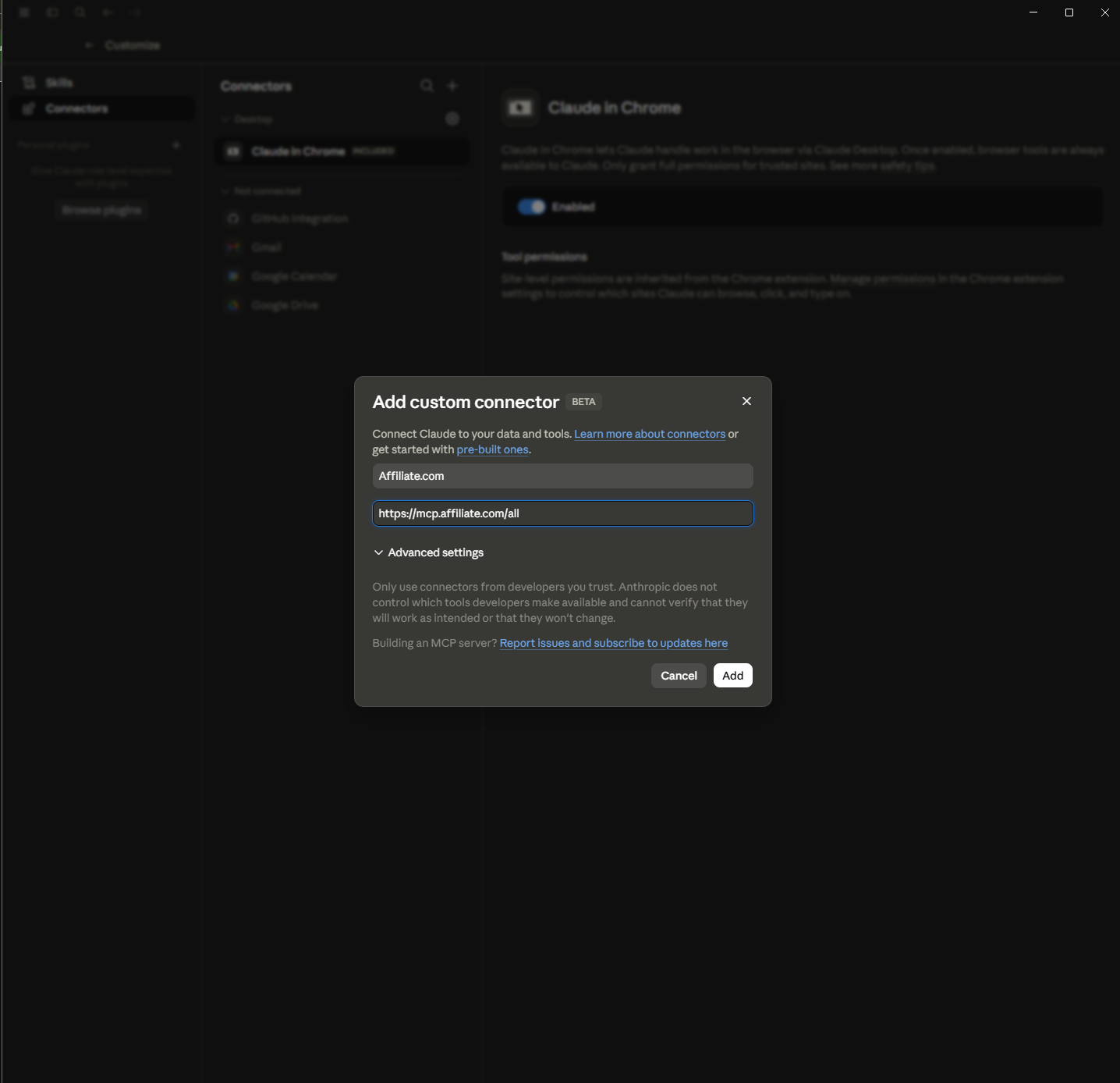
Start in Claude Desktop or Claude settings and open
Customize, then Connectors. In the connector list, choose Add custom connector.
In the modal, name the connector Affiliate.com and enter:
https://mcp.affiliate.com/all
Click Add. This registers Affiliate.com as a custom MCP connector, which is how Claude discovers the available product tools. Anthropic describes custom connectors as remote MCP connections that let Claude access tools from an external server.
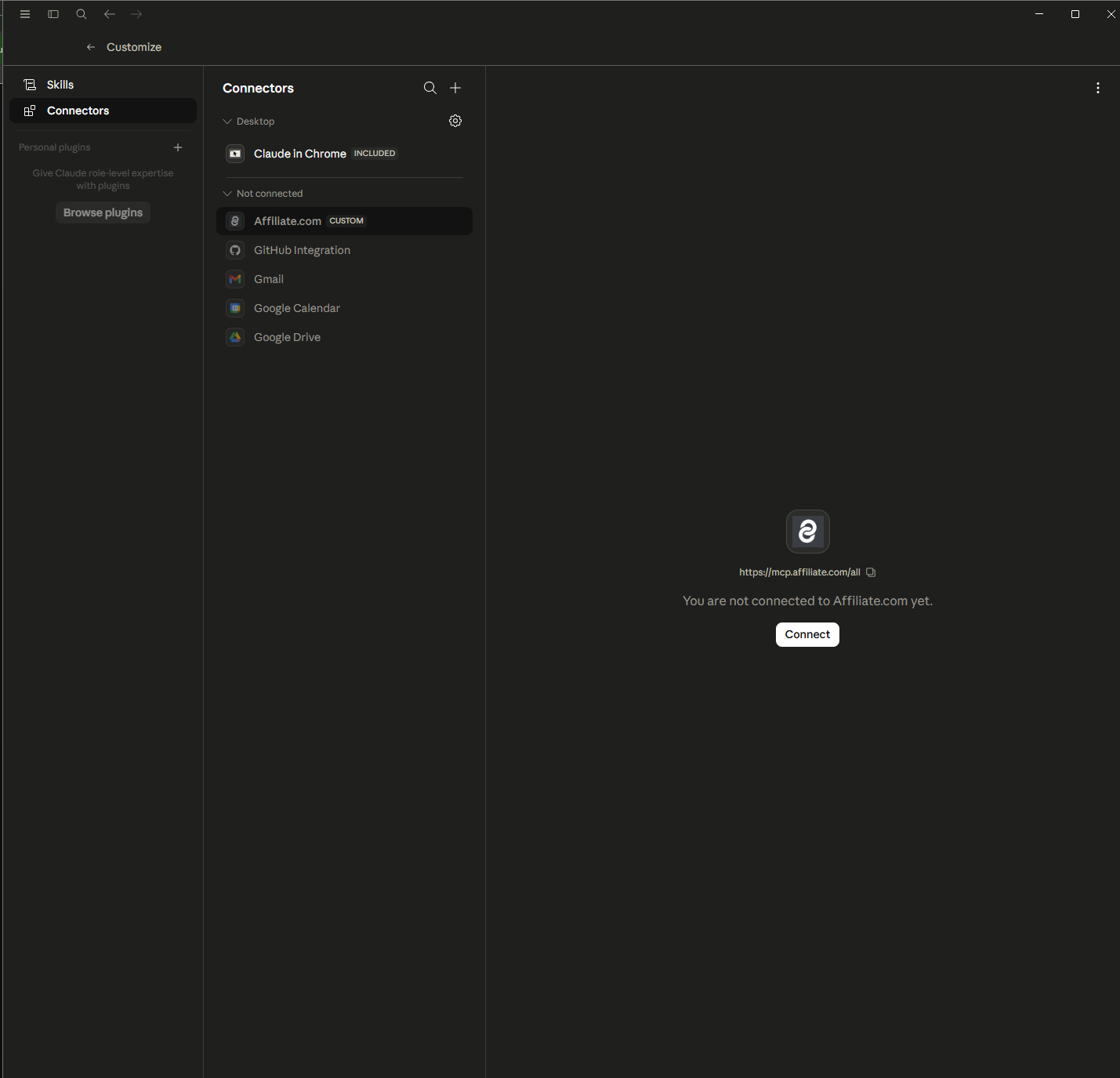
Step 2: Connect the Affiliate.com connector
After adding the connector, Claude shows Affiliate.com under Not connected with the same MCP URL displayed in the main panel. Click Connect.
This is the handoff from configuration to authorization. For a data team, this matters because connection state is visible before anyone starts asking Claude to search products, convert identifiers, or retrieve merchant records.
Step 3: Authorize Claude access
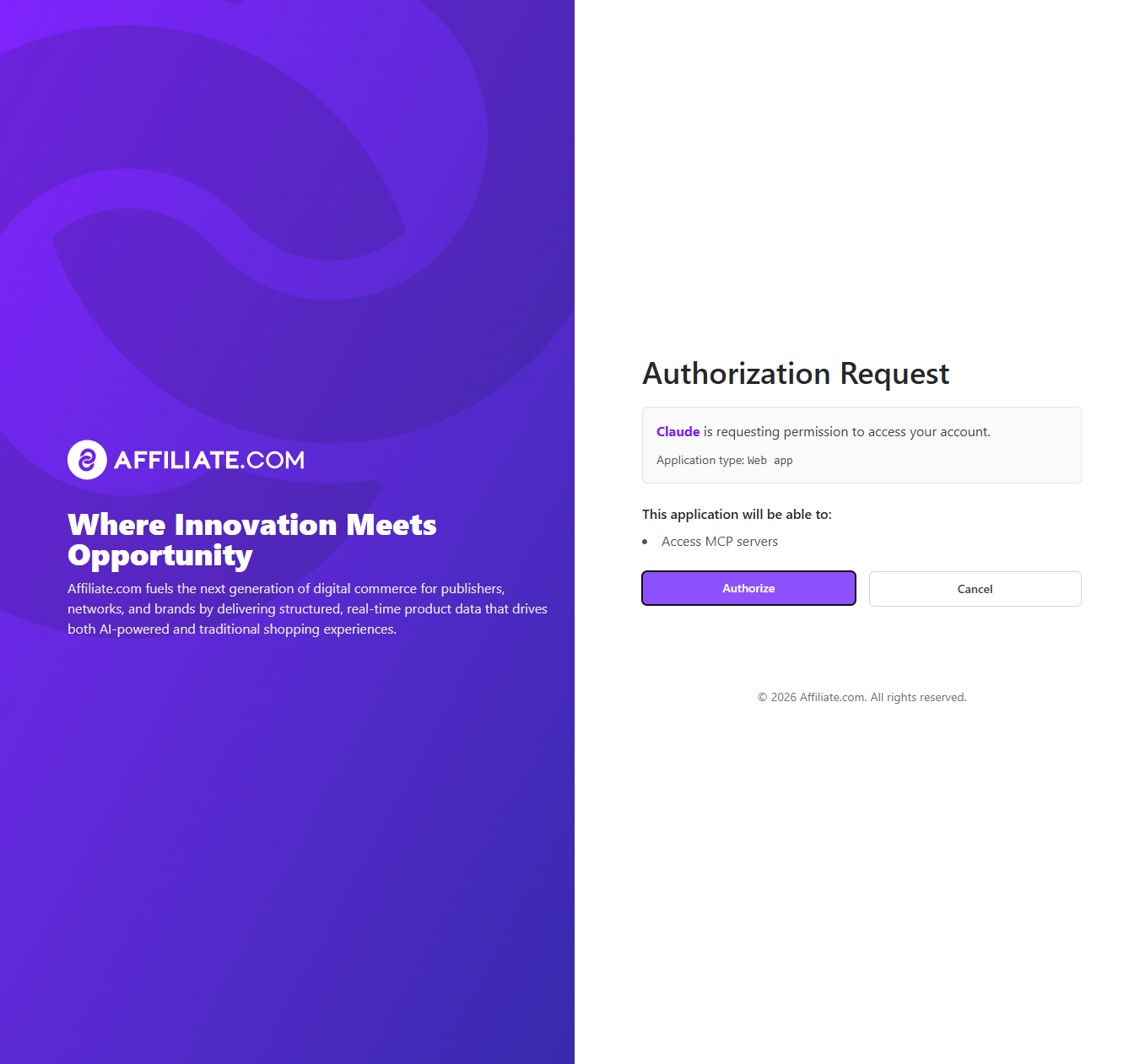
Claude opens an Affiliate.com authorization screen. Review the request, then click Authorize.
The authorization screen states that Claude is requesting permission to access the account and that the application will be able to access MCP servers. This is the right place for teams to confirm they are connecting the intended account before exposing product search tools to editorial or operations users.
Step 4: Review tool permissions
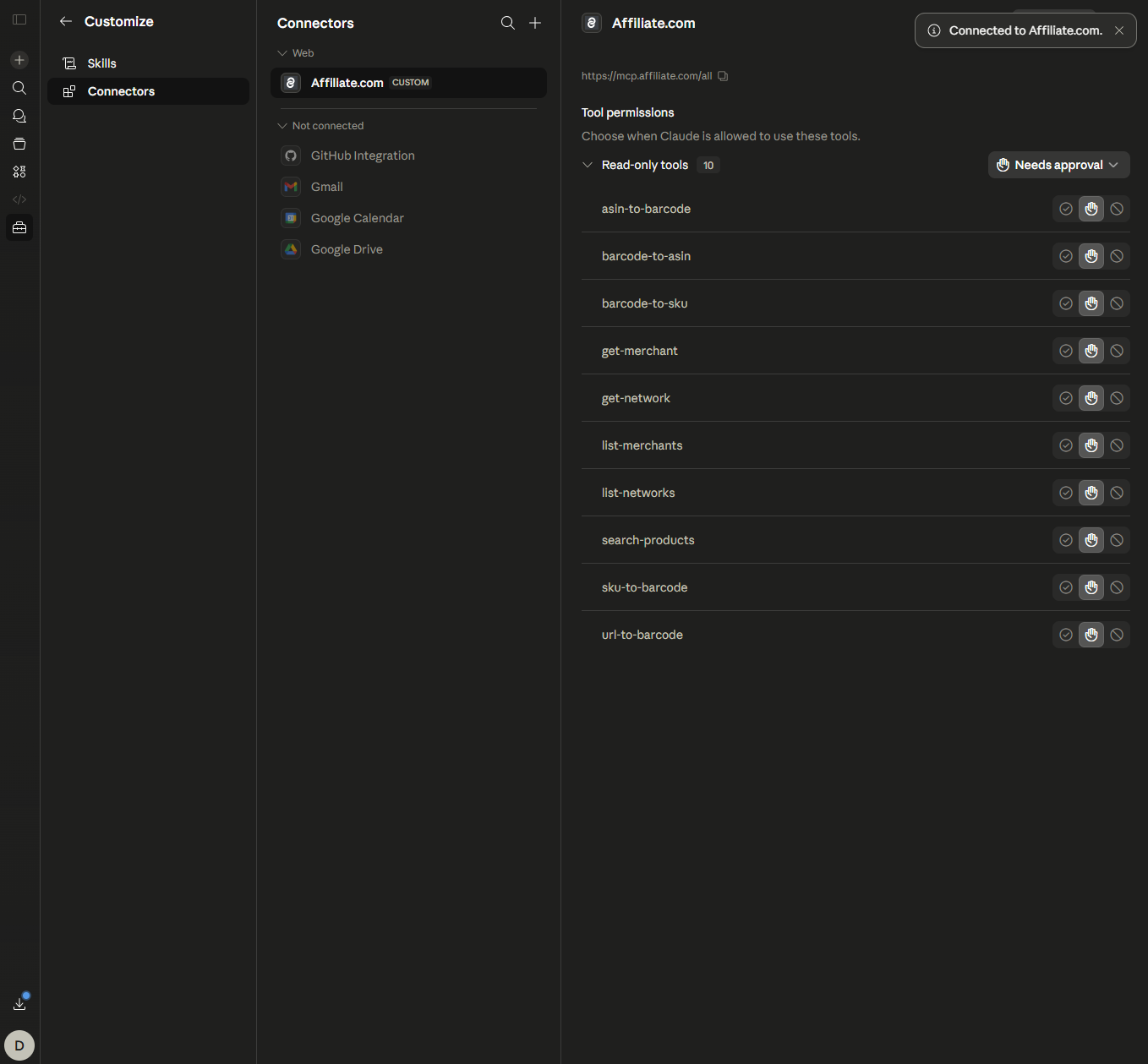
Once connected, Claude displays Affiliate.com under connected web connectors. The tool list shows read only tools such as search products, list merchants, list networks, get merchant, get network, asin to barcode, barcode to asin, barcode to sku, sku to barcode, and url to barcode.
Set tool permissions deliberately. In the screenshot, the tools are configured as Needs approval, which is sensible for early rollout because Claude must ask before using each tool. That gives editors a review moment before searches, identifier conversions, or merchant lookups run.
What the hiking example shows
Claude can curate category coverage, not just single products
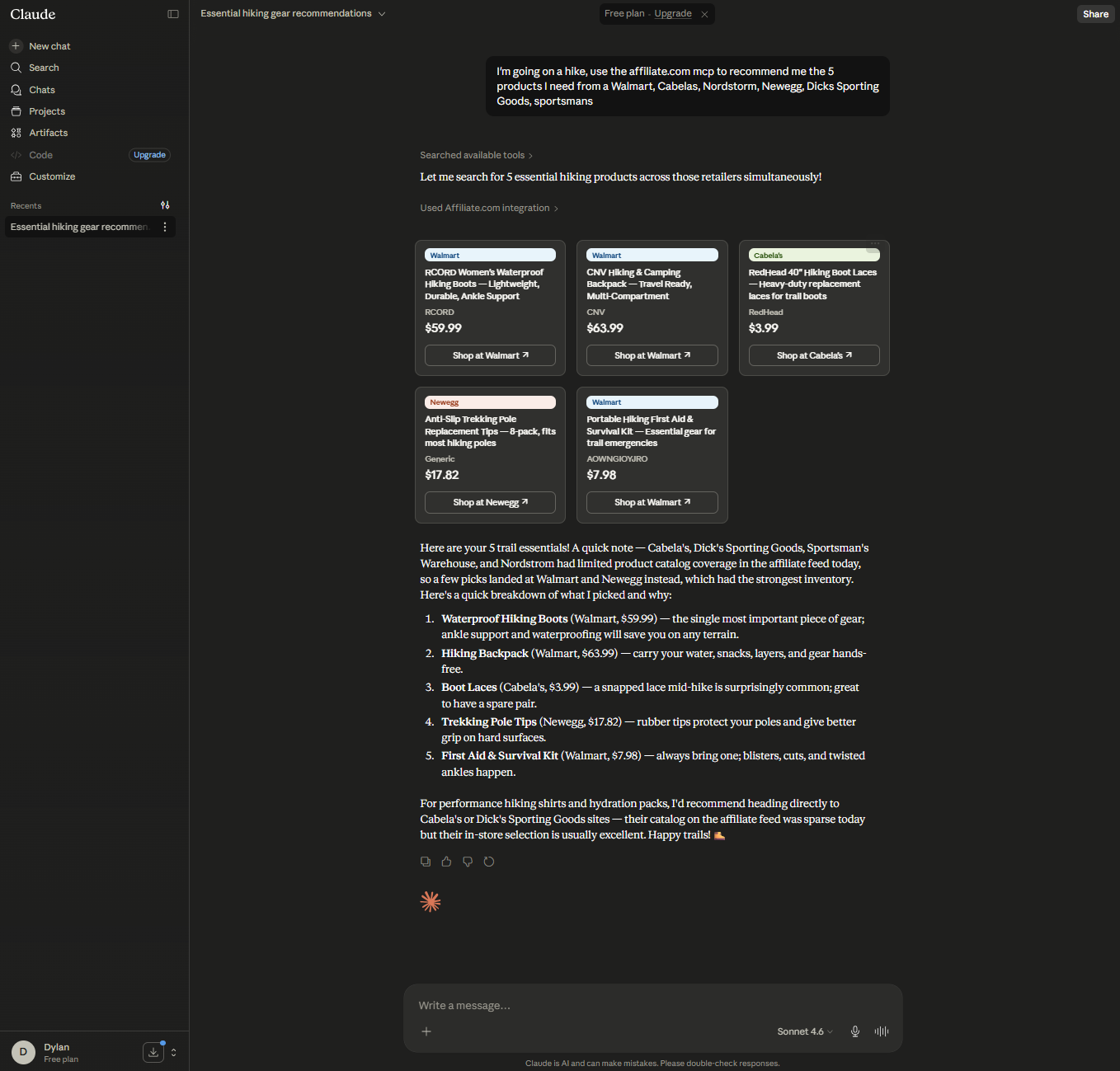
In the hiking workflow, the user asks for five products needed for a hike. Claude does not return five random outdoor items. It works through a practical kit structure: footwear, daypack, hydration, headlamp, and trekking poles.
That matters because affiliate merchandising often starts with use case coverage, not a single SKU. A strong curation assistant should understand that “going on a hike” implies a balanced product set, then use Affiliate.com product search to find candidates that match price, merchant, stock, and category constraints.
Merchant constraints make the answer commercially useful
The user names the merchants up front. That turns a broad shopping request into a governed affiliate workflow.
Instead of searching the open web, Claude can use merchant level constraints to look for relevant products from the requested merchant set. Affiliate.com supports merchant and network fields, including merchant name, merchant ID, network name, and network ID, which helps teams keep product selection aligned with the sources they intend to use.
For a publisher, this is not a minor detail. Merchant scoped search is what separates an entertaining AI answer from a usable commerce draft.
How Claude should reason through product selection
Start with the job to be done
The best prompt names the shopper mission, not just the product category.
For example:
“I'm going on a hike. Use the Affiliate.com MCP to recommend five products I need from Walmart, Cabelas, Nordstrom, Newegg, Dick's Sporting Goods, and Sportsman's Warehouse.”
That gives Claude three useful constraints:
- The use case is a day hike
- The output should be a compact kit
- The search should stay within named merchants
From there, Claude can search across product names, descriptions, categories, brands, prices, availability, and merchant data. Affiliate.com’s searchable product information includes basic fields, pricing fields, inventory fields, ID fields, merchant fields, network fields, and URL fields.
Use fields to improve the list
A good product curation flow should not stop at relevance. It should layer practical filters.
For a hiking kit, Claude can look for:
- In stock items
- USD pricing
- Reasonable final price
- Sale discount when available
- Merchant name from the approved set
- Product URL or commission URL
- Image URL for later editorial review
- Brand, category, material, size, or gender where relevant
This is where normalized product data changes the workflow. Claude can ask for structured candidates, then explain the recommendation in human language.
Keep the caveats visible
The example output does something important: it adds an editorial caveat. Claude notes that some listings may be marketplace items, that the selected boots are women's sizing, and that the kit is not a complete safety checklist.
That is the right editorial posture. AI assisted curation can accelerate product discovery, but editors should still review fit, sizing, merchant context, price, stock, and audience appropriateness in the live UI before publishing.
Why normalization still matters
Product names are not enough
Merchant product titles vary. One retailer may use a full product name, another may shorten it, and another may add promotional language. Affiliate.com’s blog record repeatedly emphasizes that identifiers such as barcode, GTIN, UPC, ISBN, SKU, and MPN help teams distinguish identical products from lookalikes.
In a hiking workflow, this becomes important when Claude is asked to compare the same headlamp, boot, or hydration product across merchants. If the goal is a single curated pick, name and category may be enough to start. If the goal is merchant comparison, barcode or MPN should become the proof layer.
Deduplication depends on the page format
Deduplication should match the editorial job.
For a “five hiking essentials” article, deduplication usually belongs on. The reader wants five different items, not five listings for the same backpack.
For an offer comparison module, deduplication may belong off. The reader may want to see the same product across several merchants, with final price, discount, availability, and merchant choice side by side. Affiliate.com supports deduplication controls so teams can decide whether to consolidate identical products or show multiple offers.
A reusable prompt pattern
Use this structure when asking Claude to curate products through Affiliate.com's MCP:
“Use Affiliate.com MCP to find products for [shopper mission]. Search only these merchants: [merchant list]. Return [number] products across distinct need states. Prioritize in stock products in [currency], reasonable final price, clear product fit, and discounts where available. Include product name, merchant, final price, regular price when available, sale discount when available, availability, and product URL. Add caveats for sizing, marketplace ambiguity, or incomplete kit coverage.”
For the hiking example, the need states might be footwear, pack, hydration, lighting, and poles. For a dorm room guide, they might be bedding, desk lighting, storage, power, and small appliances.
Start with the Query Builder, then scale in Claude
Start by testing the same logic in Affiliate.com's Query Builder. Use merchant filters, price fields, discount fields, availability, brand, category, and deduplication until the result set matches the editorial goal.
Then move that workflow into Claude through the Affiliate.com MCP connector. Claude can speed up the first pass of product curation, but Affiliate.com remains the structured source for search, filtering, matching, merchant scope, and review ready product data.