
Merchant and Network Filters, Diagnosing Missing Offers, Unexpected Merchants, and Empty Results


Merchant and network filters are the fastest way to turn a broad product dataset into a controlled, monetizable selection. When they are misapplied, you get the three classic failure modes, missing offers you expected, merchants you did not intend to show, or a blank response that makes you doubt the whole pipeline.
Affiliate.com normalizes product data across more than 30 networks, 20,000 merchant programs, and over a billion products, which is powerful precisely because it is wide. Your job as an operator is to constrain that breadth with filters, then validate the output using identifiers, pricing, and availability fields before it touches a page.
Definitions that matter in debugging
A network filter limits results to products sourced from a given affiliate network, using network name or network ID. A merchant filter limits results to a specific merchant, using merchant name or merchant ID.
Deduplication controls whether identical products are clustered into a single representative record or returned as separate offers and variants, which can change the shape of your result set even when the query looks the same.
Why missing offers usually comes down to identity, scope, or state
When an offer is missing, it is rarely random. In practice, it is one of three things.
Identity problem, you searched the wrong thing
If you searched by product name alone, you are at the mercy of naming differences. Affiliate.com highlights that titles and attributes vary across merchants, and normalized identifiers are what cut through that noise.
Use a strong identifier when you can:
- Barcode (UPC, EAN, GTIN, ISBN) to verify the same product across networks and merchants
- SKU or MPN when you need an exact match inside one merchant catalog
A quick sanity move is to run the same search twice, once by barcode and once by name or any field, then compare merchant coverage. Barcodes are explicitly described as a way to verify that two listings from different networks refer to the same product.
Scope problem, you filtered it out
The most common cause of missing offers is that your network filter is too tight. Filtering by network is designed for control, for example when you are only approved on certain networks, or you want to inspect one network at a time. If you apply a network filter without realizing it, you may be looking at a partial universe.
Merchant filters can also create accidental exclusion. Merchant filtering is meant for precision, like keeping content aligned with a trusted retailer set or managing approval lists, but it can easily become a silent constraint that blocks expected results.
State problem, the offer exists but should not be shown
Sometimes the product exists in the dataset, but the offer should be suppressed because it fails a promotion rule. Your best guardrails are inventory and commissionable status fields, then pricing context.
Affiliate.com explicitly calls out inventory fields and URL fields as part of the searchable dataset, including availability, stock information, and commissionable product URL, image URL, and direct URL. If your query requires in stock plus commissionable status, you can turn an apparent “missing offer” into a deliberate exclusion.
Diagnosing unexpected merchants, the cluster got wider than you thought
Unexpected merchants usually show up when you start broad, then forget to re anchor.
Start broad, then lock down intentionally
The any field is designed to cast a wider net by matching across names, descriptions, and categories, which is perfect for discovery. It is also the easiest way to accidentally pull in off intent items and merchants you would never feature if you were being strict.
A reliable workflow is:
- Start with any field to see the landscape.
- Add brand to normalize a manufacturer anchor.
- Add merchant and network filters last, once you know the real merchant set you want to allow.
Watch what deduplication is doing
If deduplication is enabled, the system clusters matching offers and selects a single representative record for display. That means the merchant you see at the top can change, even when the underlying offer set is stable.
If your goal is offer comparison, keep deduplication off so you can see each listing separately and verify which merchants are actually present.
Debugging empty results, a stepwise checklist
When a query returns nothing, do not tweak randomly. Walk it down in a controlled way.
Step 1, remove constraints in this order
- Remove price and discount filters first.
- Remove availability constraints next.
- Remove merchant filter.
- Remove network filter last.
This order preserves identity while relaxing business rules. It also quickly tells you whether the issue is that the product does not exist in your scoped merchant set, or that it exists but fails inventory or pricing filters.
Step 2, validate currency and pricing semantics
Currency filters can be a hidden blocker, especially in global datasets. Affiliate.com notes that currency can be used to narrow results and that pricing fields like regular price, final price, and discount can be used for precise filtering and sorting.
A practical validation move is to temporarily remove currency, then reapply it once you confirm the product appears.
Step 3, confirm you are searching for the exact product
If you are trying to power a comparison or replace an out of stock merchant with an in stock alternative, start with a strong identifier, run it across all networks, then compare offers using final price, discount, and availability.
That sequence turns “empty results” into a concrete answer, either the product truly is not present in the constrained networks and merchants, or it is present but fails your constraints.
Practical example, a missing offer investigation in five minutes
Imagine you expect to see a specific Airpods across multiple merchants, but your page shows only one retailer.
- Run a barcode search for the product to force exact match across merchants.
- Turn deduplication off to expose all offers and confirm merchant coverage.
- Add in stock and commissionable status rules to remove dead offers, not to hide discovery during debugging.
- Only then apply network and merchant filters to align the result set with your approved partners and editorial policy.
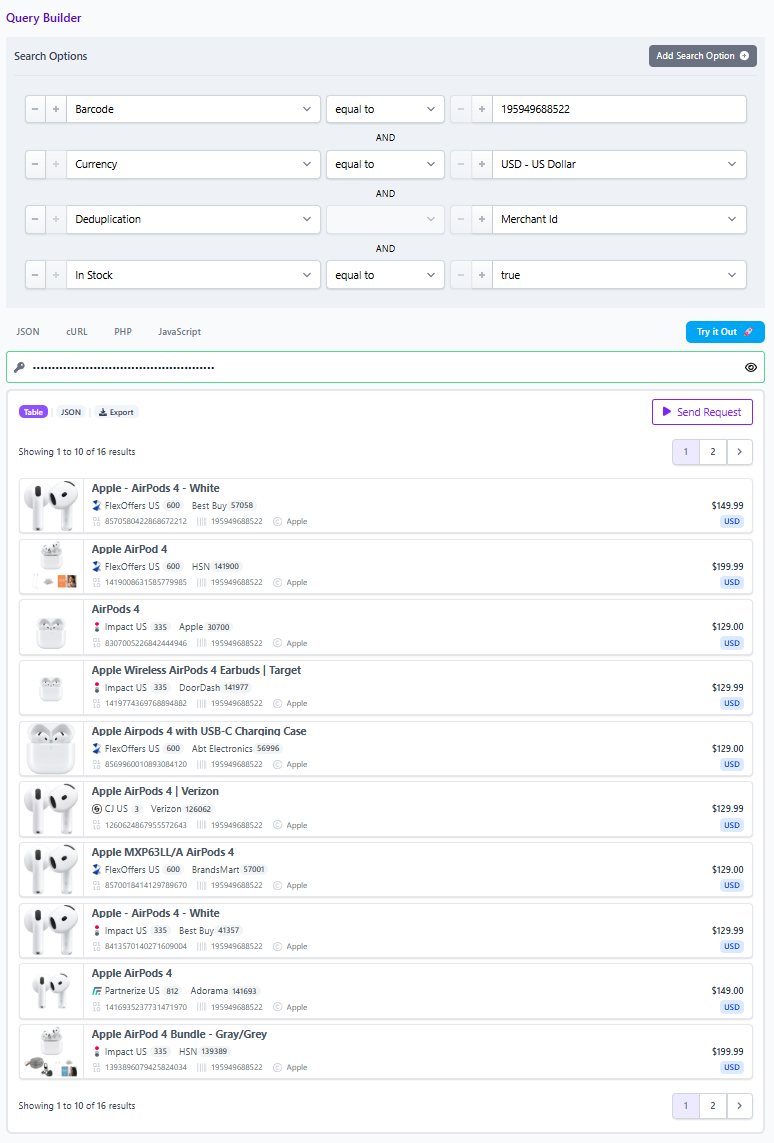
You end with a defensible explanation: either the offer set is genuinely thin, or you filtered it away, or it is present but not promotable.
CTA, use Query Builder to reproduce, share, and fix faster
When debugging with a team, the fastest path is to reproduce the exact query state. Affiliate.com’s Query Builder lets you narrow results using more than 30 search fields, then share the query link so others open the same filters and product selection without rework.
Use that shared query as your support artifact. It becomes a single source of truth for what is scoped in, what is scoped out, and which filter is responsible for the behavior you are seeing.