
Rank offers by final price and discount for comparison sets that finds the best deals


Final price is the amount a shopper would pay at checkout after promotions are applied. Discount is the percentage reduction from regular price to final price. Ranking offers by final price and discount inside a comparison set is the most defensible way to find the best deals, because it compares like with like instead of loosely similar items. Affiliate.com normalizes product data across more than 30 networks and tens of thousands of merchant programs, with over a billion products available to query, so these fields are dependable anchors for decision making.
Comparison sets are groups of identical products presented once with multiple merchant offers beneath. They rely on structured identifiers to match the same item across networks and merchants, even when titles vary. That lets you sort offers by final price or discount with confidence because you are comparing the same SKU, not lookalikes.
Why final price and discount beat list price
Regular price can be messy across feeds. Some merchants treat it as MSRP, others as a crossed out anchor. Final price is today’s payable amount, and discount is computed from regular price and final price. Using these fields lets you filter, sort, and explain deal quality without guesswork.
In practice, a discount threshold, such as at least 20 percent off, quickly separates true value from low significance markdowns. Editorial teams can then order the remaining offers by ascending final price to land the best total at checkout at the top of the set.
The core mechanics that make comparison sets work
Normalization and identifiers solve the naming problem. Barcodes like GTIN or UPC connect mismatched titles to the same product record across merchants. With a clean match, you can safely compare prices, discounts, and other fields. If you are highlighting multiple offers for one item, leave deduplication off so all merchant listings for that product remain visible under one normalized product card.
Affiliate.com exposes the fields you need for this workflow, including brand, merchant name and ID, currency, regular price, final price, sale discount, URLs, barcode, SKU, MPN, and availability. You can layer filters by price, currency, attributes, and more to tighten the set before you sort by final price or discount.
Mini workflow: build a comparison set that finds the best deal
A quick example from an editorial buyer’s guide.
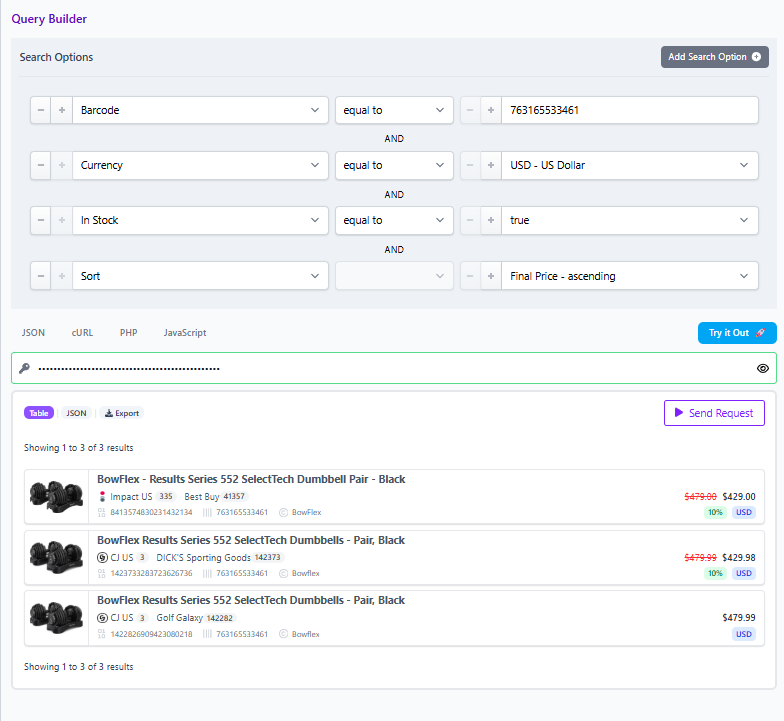
- Start with a strong identifier. Take a barcode from a product page and query by barcode to match identical listings across merchants. This collapses title variance and gives you a single normalized product with multiple offers underneath.
- Keep deduplication off. You want every relevant merchant offer for that normalized product so you can compare on price and discount.
- Layer essential filters. Limit to your operating currency, and to merchants you already partner with. Add brand if your page is brand scoped. Optionally include availability to avoid promoting an offer that is not currently purchasable.
- Order the set by final price ascending. This puts the lowest total payable at the top. Then apply a secondary sort by discount percentage to break ties and spotlight the steepest markdowns when prices match.
- Publish with a plain language explainer. Example: Featured offer ranks first because it has the lowest final price today and meets our discount threshold. Prices and promotions can change, verify in the live UI before publishing.
Cross currency note
If you work across regions, normalize by product identifier first, then compare values using consistent currency. Affiliate.com supports cross currency discovery and matching so you can keep the product set coherent while reflecting accurate local pricing per market.
Field checklist for reliable ranking
- Pricing fields to include in the query: final price, regular price, sale discount, currency.
- Identifier fields to anchor the comparison: barcode, SKU, MPN, ASIN where available.
- Source fields for program controls: merchant name and ID, network name and ID.
- Status fields to sanity check presentation: availability and commissionable status.
Implementation paths
You can create this experience with the visual Query Builder or the Product API. In the Query Builder, choose barcode as your anchor, add currency and merchant filters, then sort by final price and discount. Copy the shareable link to reuse the exact same comparison set in content. For code based teams, the same filters map directly to request parameters and can be embedded in pages or internal tools.
Governance and trust
Pricing and promotions vary by merchant and by time. Treat any price you show as at time of writing and confirm in the live UI before publishing. Affiliate.com refreshes from networks and merchants, but there is no implied guarantee of live or real time pricing. Use comparison sets to give readers choice and to reduce the impact of any single offer shifting during an update cycle.